Teams background maker
Pick a free background, add your name, title and logo, and download a custom Teams background at the exact size Microsoft Teams expects. Free, no signup, and it runs in your browser.
Teams background maker tool
A transparent PNG or SVG logo looks best. Nothing is uploaded.
Every layout keeps your name clear of your head and of the app’s own name tag.
A little blur keeps the edge around you clean when the app cuts you out.
Free Teams backgrounds, ready to use
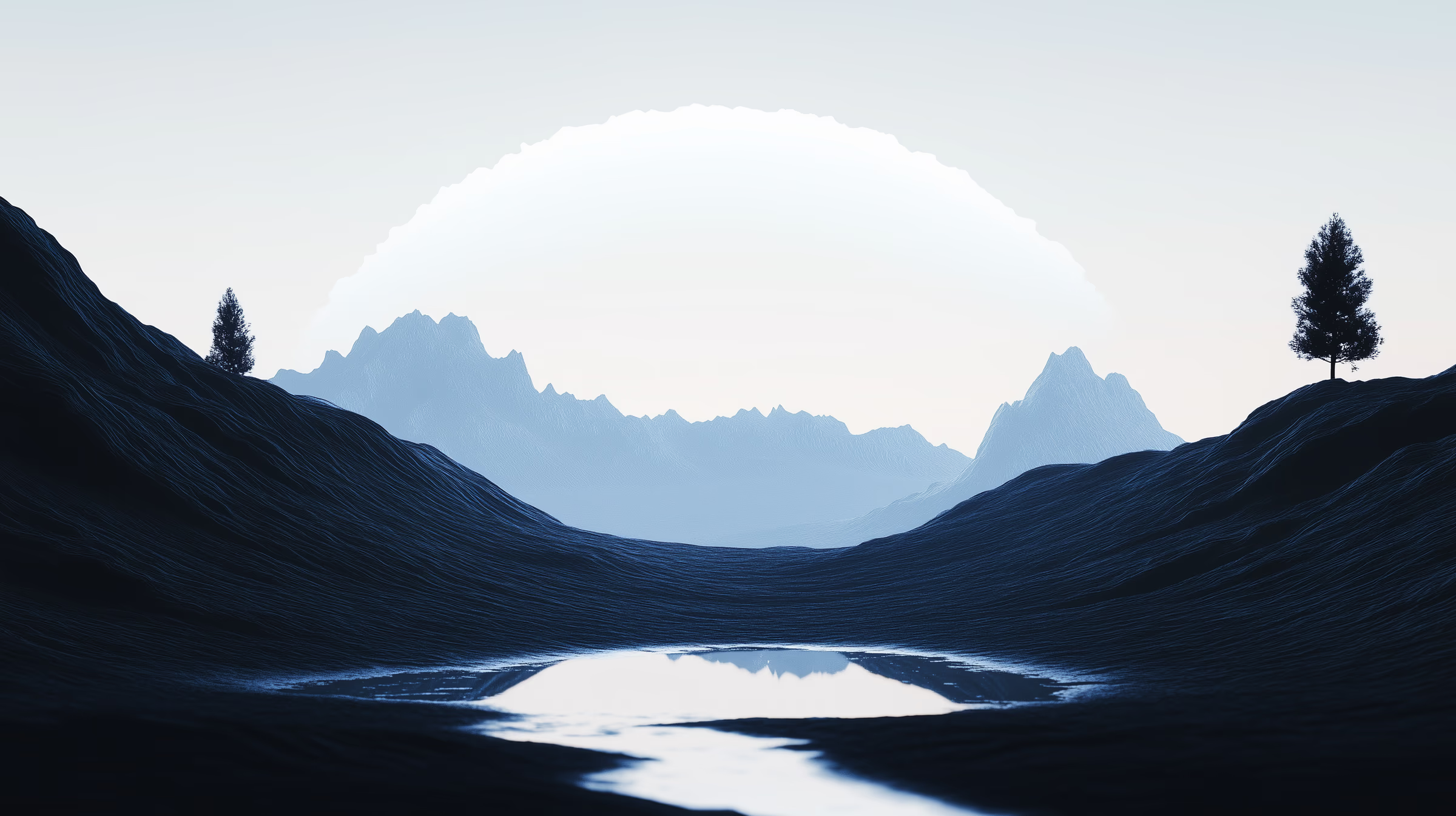
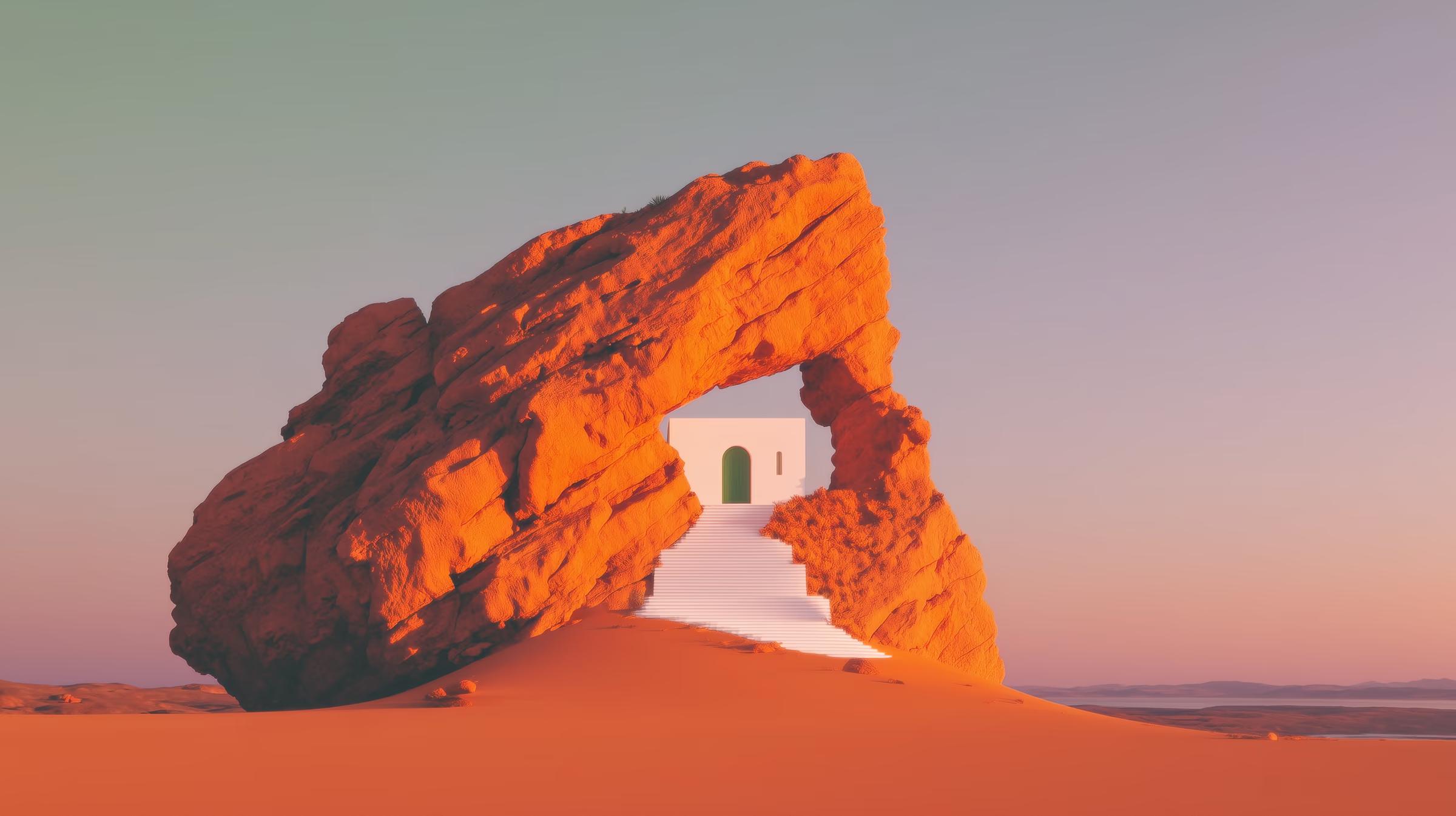
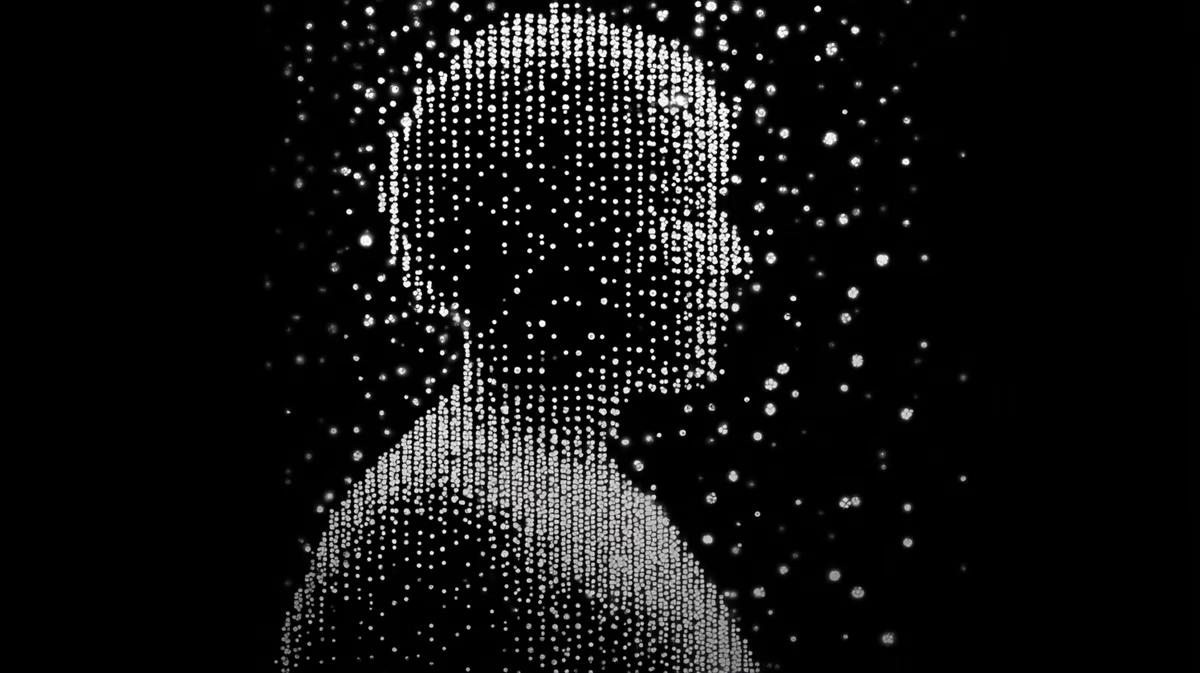
Short on time? Download any of these as a 1920×1080 background in one click, or send it to the maker to add your name. They come from our free aesthetic backgrounds, and there are more in every background collection.









How to make a Teams background with your name
Pick a background
Start from a free background, one of the free gradients, or your own image. Drag the preview to frame it, and add a little blur if you want the edge around you to stay clean.
Add your name and logo
Type your name and title, add a transparent PNG or SVG logo, and choose a layout. Every layout keeps the text beside your head, not behind it.
Download and upload it
Download a PNG or JPG at 1920×1080 (or 1280×720, or 3840×2160), then add it in Teams or Zoom as a custom background.
Teams background size
Teams crops your background to the shape of your camera, which is 16:9 on almost every laptop and webcam. So the safe size is a 16:9 image at 1920×1080. Go bigger only on a 4K setup. The same file works in Zoom too, as long as it stays under 15 MB.
| App | Size | Formats | Source |
|---|---|---|---|
| Microsoft Teams | 1920×1080 recommended (16:9). Organization backgrounds: 360×360 minimum, 3840×2160 maximum | JPG, PNG, BMP | Microsoft Learn, Microsoft Support |
| Zoom | Match your camera: 1280×720 or 1920×1080 for 16:9. 1280×720 minimum. 15 MB maximum | 24-bit PNG, JPG | Zoom Support |
Checked against Microsoft and Zoom documentation on 5 November 2026.
Why your name looks backwards (and why that is fine)
Teams and Zoom show you a mirrored self-view, because that is what a mirror looks like and it makes small movements feel natural. Everyone else in the call sees you the right way round, text included. So never flip your background to fix it: you would make it backwards for everyone else. Turn on the mirror button above the preview to see what you will see, then turn it off to see what your meeting sees.
Tips for a background that works on camera
Keep the middle quiet.Your head and shoulders cover the centre of the frame, and the app’s own name tag sits at the bottom left. Put your name in a top corner or a side column, which is what every layout here does.
Soft beats busy. Background replacement cuts you out of the picture in real time, and fine detail behind you makes the edge shimmer. Smooth gradients and a touch of blur hide that edge. The Blur and Darken sliders exist for exactly this.
Contrast for your text. White text needs a darker area behind it, and dark text a light one. If the background is busy where your name sits, switch on the panel behind the text.
Same file for both apps.A 1920×1080 JPG works in Teams and Zoom and stays well under Zoom’s file limit. Need the steps to set it? How to change your background in Teams and Zoom covers both apps.
More ways to make a background
Want something no one else has? Make your own in the gradient background generator and bring it back here as an upload, or start from one of the free gradient wallpapers. For your phone, laptop or a dual monitor setup, the wallpaper maker does the same job at the exact size of your screen.
Explore more: aesthetic wallpapers, moving backgrounds, free gradient wallpapers, gradient backgrounds, cool backgrounds, free aesthetic backgrounds.
FAQs
Microsoft Teams background questions, answered
Use a 16:9 image at 1920×1080 pixels, saved as a JPG or PNG. Teams accepts JPG, PNG and BMP uploads, and Microsoft's admin documentation lists 360×360 as the smallest and 3840×2160 as the largest custom background, so 1920×1080 sits comfortably in the middle and matches most webcams.
Pick a background in the maker, then open Name and logo, type your name and title, and add your logo. A transparent PNG or an SVG looks cleanest. Choose one of the four text positions (top left, top right, left side or right side), set the font and text color, and download at 1920×1080. Your logo is read in your browser and never uploaded.
Right on this page. The ready-to-use gallery downloads any free background as a 1920×1080 JPG in one click, and the maker adds free gradients or your own photo as a base. There is no watermark and no signup. For more finished art, the free background pack and the aesthetic wallpaper collections on Backgrounds Supply work as Teams and Zoom backgrounds too.
Yes. The free backgrounds, the gradients, your own uploads, the name, title and logo overlay, and all three export sizes are free, with no watermark and no account. Backgrounds Supply Pro is optional: it opens every collection in the library as a base, adds the full-size originals and includes every future drop.
Calm and uncluttered beats a busy fake office. A soft gradient or a lightly blurred background keeps the edge around you clean, a darker area makes white text readable, and your name and title in a top corner look polished without covering your face. Use the Blur and Darken sliders here, and pick a layout that keeps the middle of the frame clear.
In a meeting, open the video effects or background settings, choose Add new (or Upload), and pick the 1920×1080 file you downloaded. It then appears in your list of backgrounds for every future call. Teams takes JPG, PNG and BMP files. Our guide to changing your background in Teams and Zoom walks through the steps for both apps.
Use the pre-join screen. When you join, turn your camera on, open the background or video effects option under the preview, and choose a background or add a new one. It applies the moment you enter the meeting, so nobody sees your room first. The background you pick stays selected for your next meetings too.
The usual reasons are an organization policy that turns off custom images, a device or browser that does not support background effects, or a file type Teams does not accept. Ask your IT admin about the policy, try the desktop app instead of the browser, and make sure the file is a JPG, PNG or BMP. Every file from this maker is a PNG or JPG.
Yes. Zoom also wants an image in your camera’s shape, so the 16:9 1920×1080 export works in both apps (1280×720 is Zoom’s recommended minimum). Zoom takes PNG or JPG files under 15 MB; the maker warns you if a 4K PNG goes over and suggests JPG. Our video call backgrounds guide has the Zoom steps.
Teams and Zoom mirror your own self-view, like a bathroom mirror, so text behind you looks reversed to you. The people in the meeting see it the right way round. Do not flip the image. Use the mirror button on the preview to see both views before you download.
Yes. Pick 3840×2160, the largest size Teams supports. Gradients render fresh at that size and stay sharp. Free library backgrounds start from a rendition up to 2,400 pixels wide, so they are scaled up for 4K, which is rarely visible behind you on a call. For Zoom, a 4K JPG usually stays under the 15 MB limit where a PNG may not.
Yes. Gradients made here and the free library backgrounds are free for personal and commercial use, with no attribution required, so work calls, client calls and branded backgrounds for a team are all fine. Your own uploads are yours. Reselling or redistributing the background files as-is is not allowed. For a wider choice across a team, Backgrounds Supply Pro opens every background in the library.
Pro opens every collection in the library as a base in this maker, not just the free set, and lets you download the full-size originals from the app, instead of the smaller free rendition. A commercial license is included. It is a one-time purchase with lifetime access, and new backgrounds added later are included.
No. Everything is drawn in your browser on a canvas. Your own images, your logo and the text you type never leave your device, and the file you download carries no metadata. That makes it safe to use a company logo or a photo of your real office.